¶ Viewing Course Lists and Schedules
Course Lists and Schedules may be viewed by both students and parents from their onCampus Accounts.
¶ Student Account
Log in to your student account at https://mcquaid.myschoolapp.com/app/#login
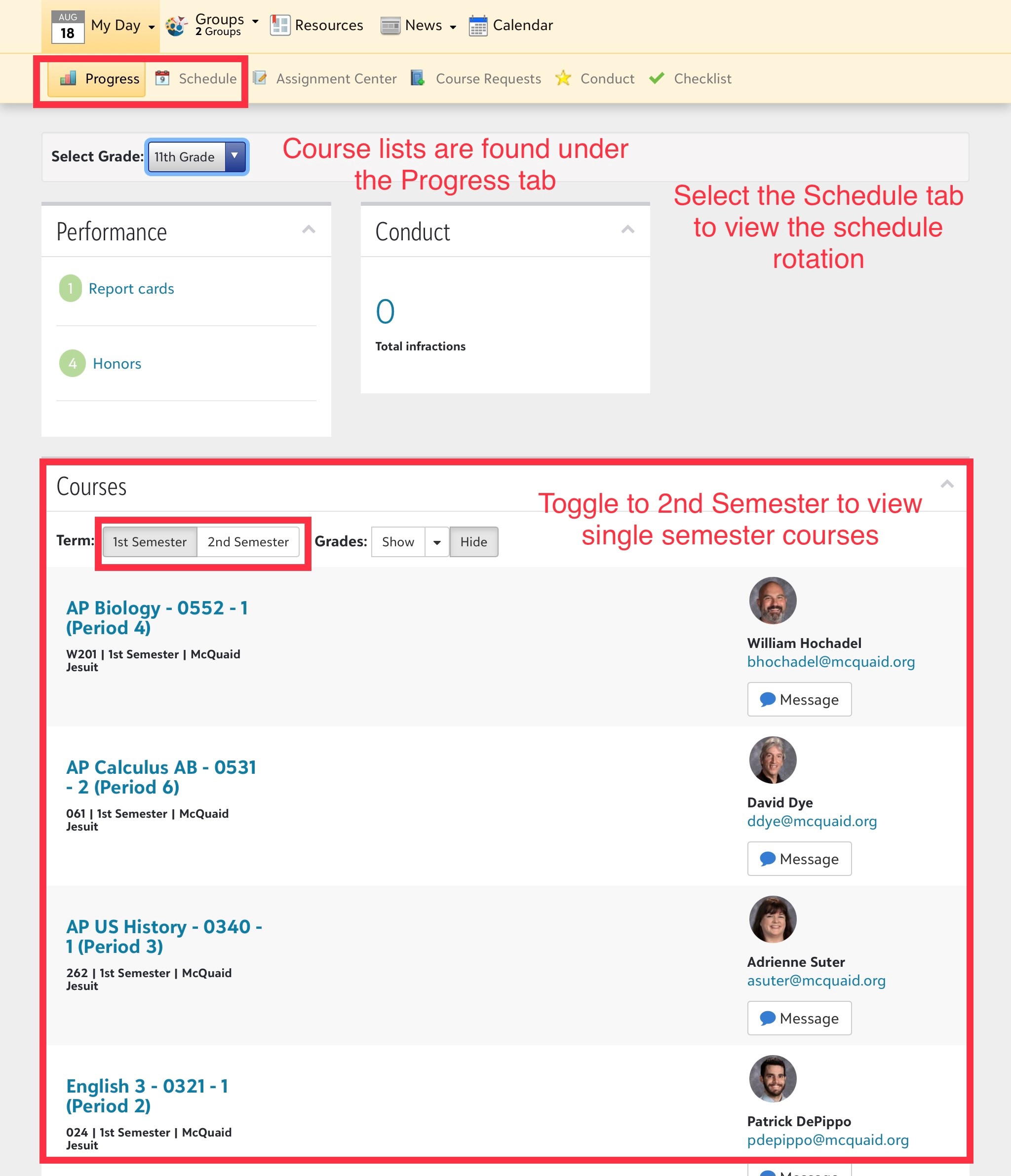
Select the Progress Tab to view courses, report cards and honor roll:
Select the Schedule tab to view your schedule for the day:
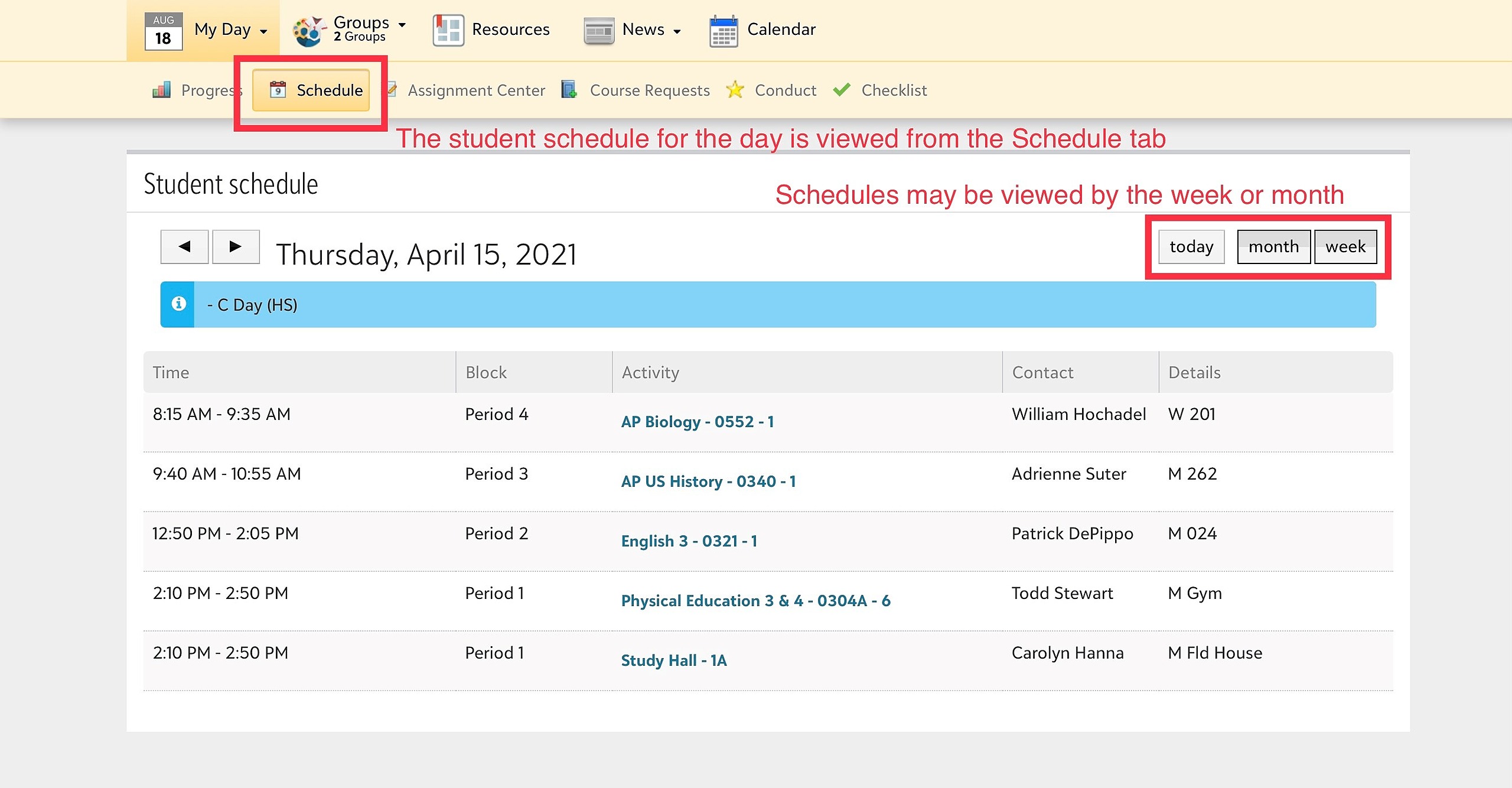
Note: The sample time order may not represent the time order for the current academic year.
Selecting the tiles for Day, Month, or Week will change your view.
Selecting the Week View: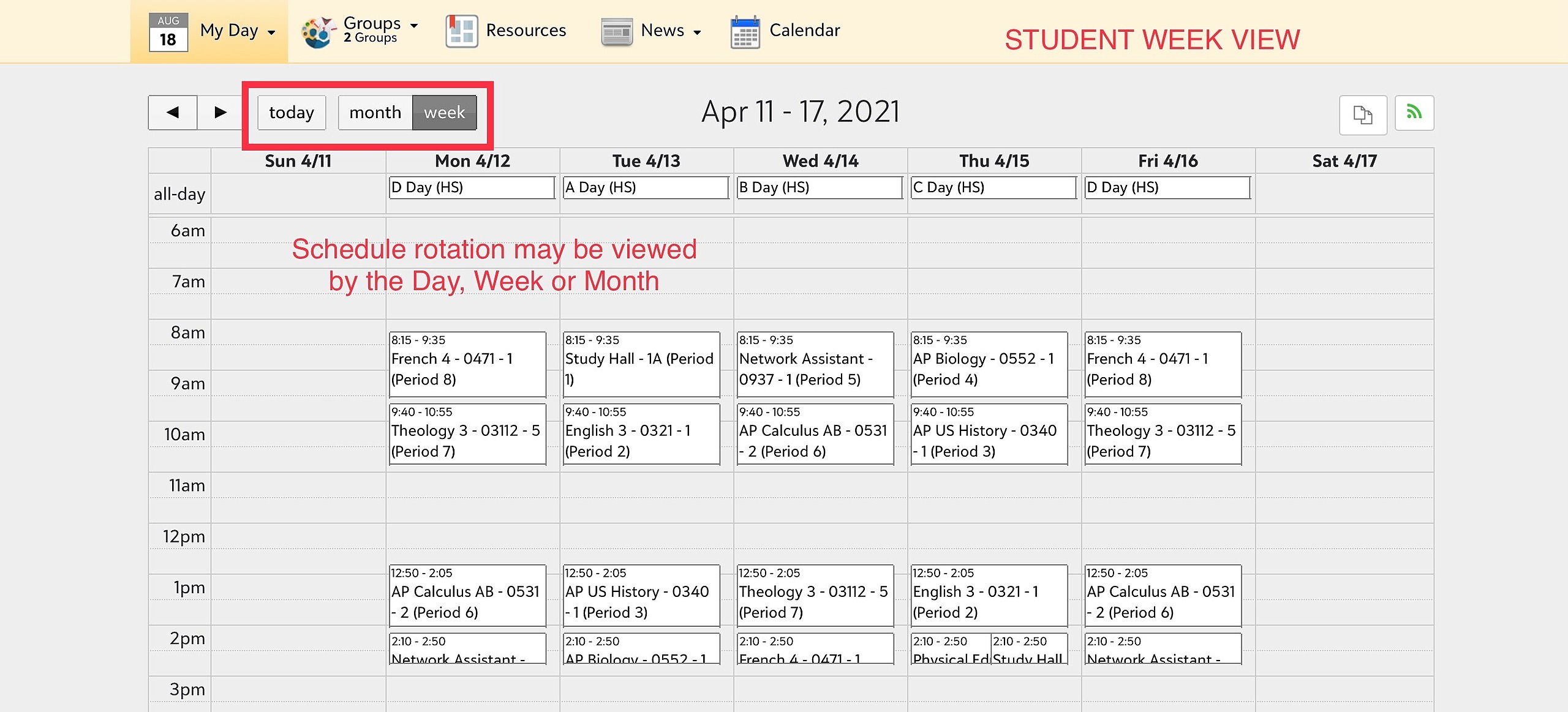
Selecting the Month view: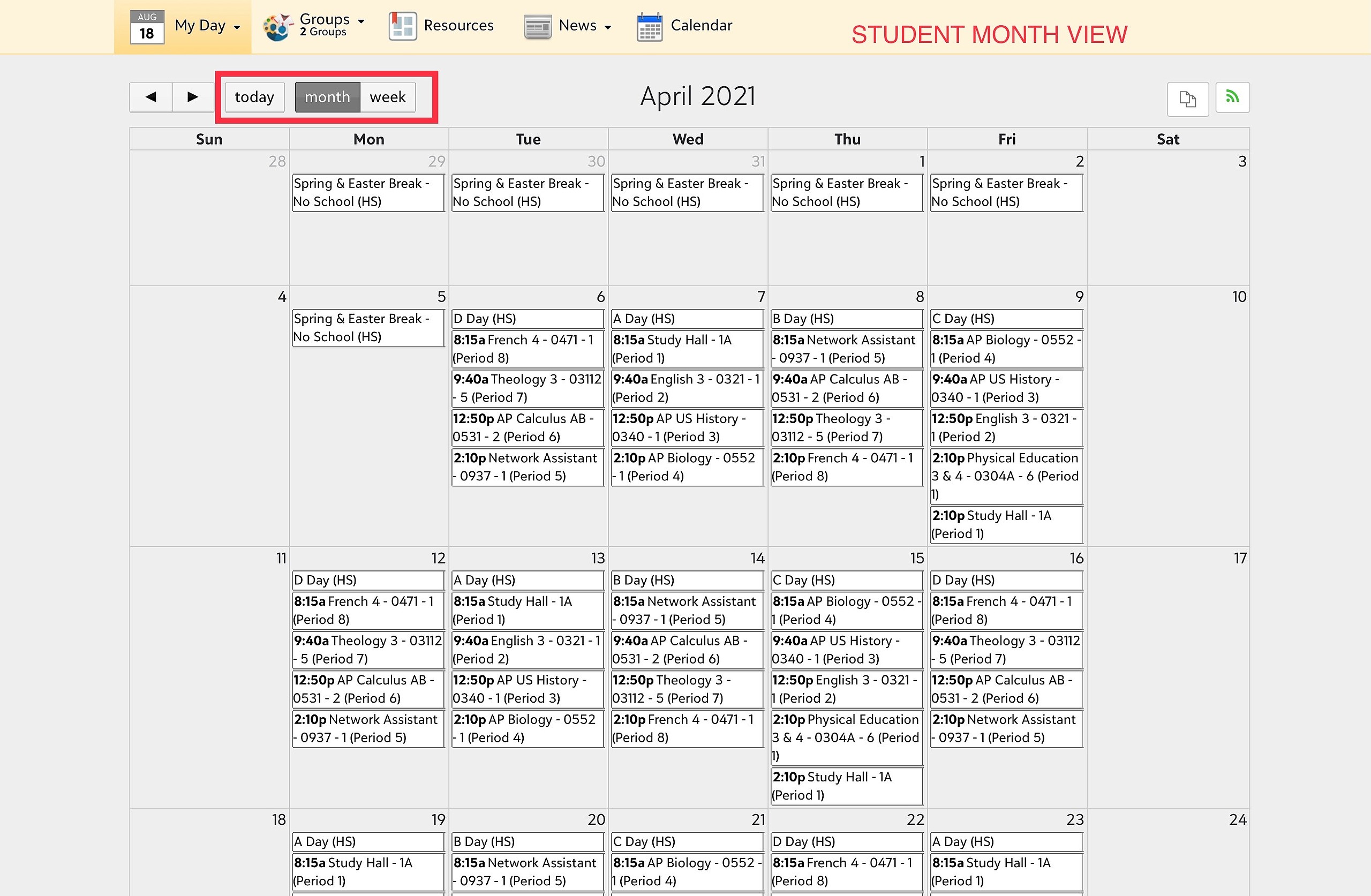
From the month view you can view a schedule in a grid format. Select from the schedule reports offered in the dropdown list: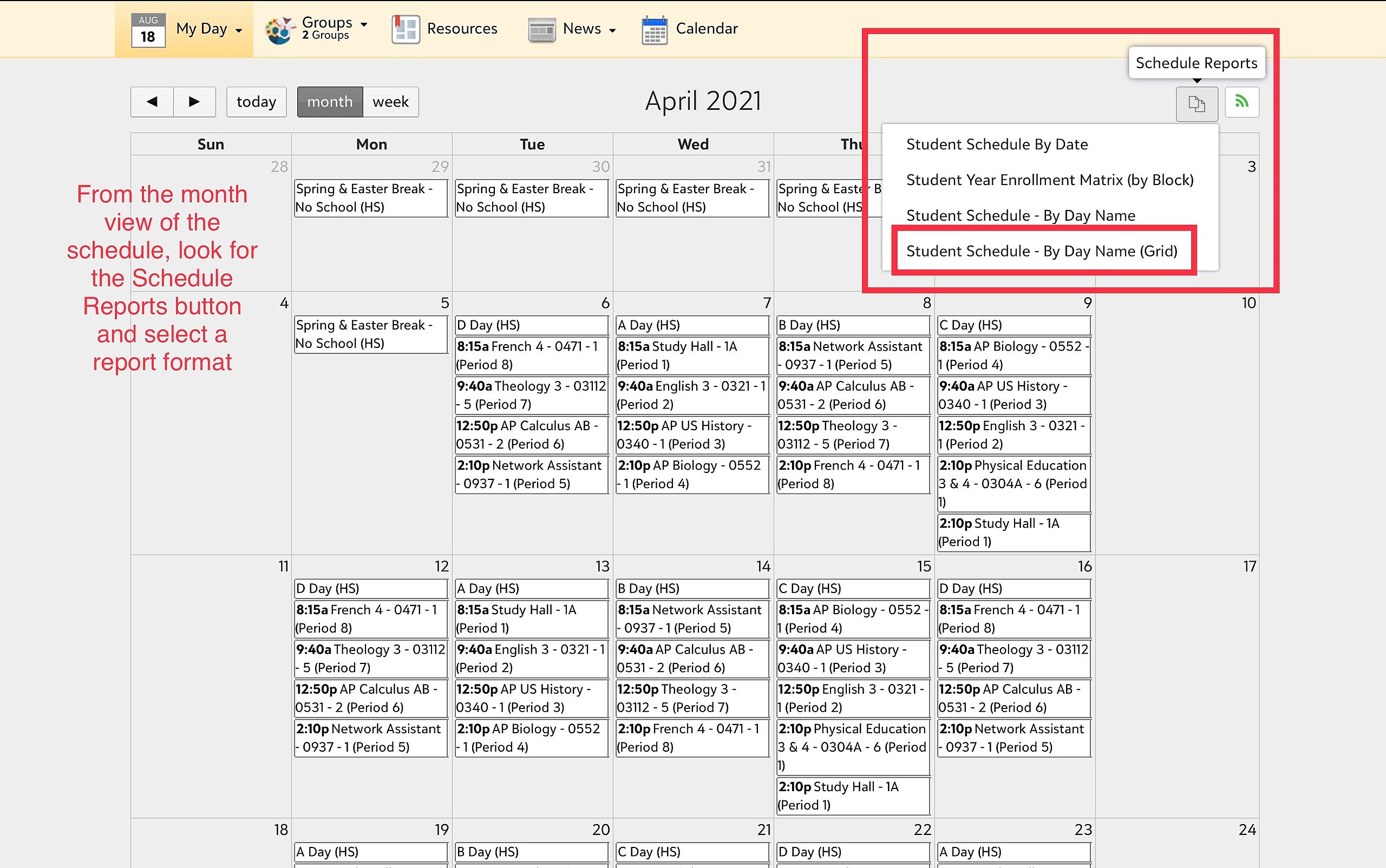
Select the dates and click Generate to view the report. Click View/Print PDF to download or print the schedule. The schedule will open in another window: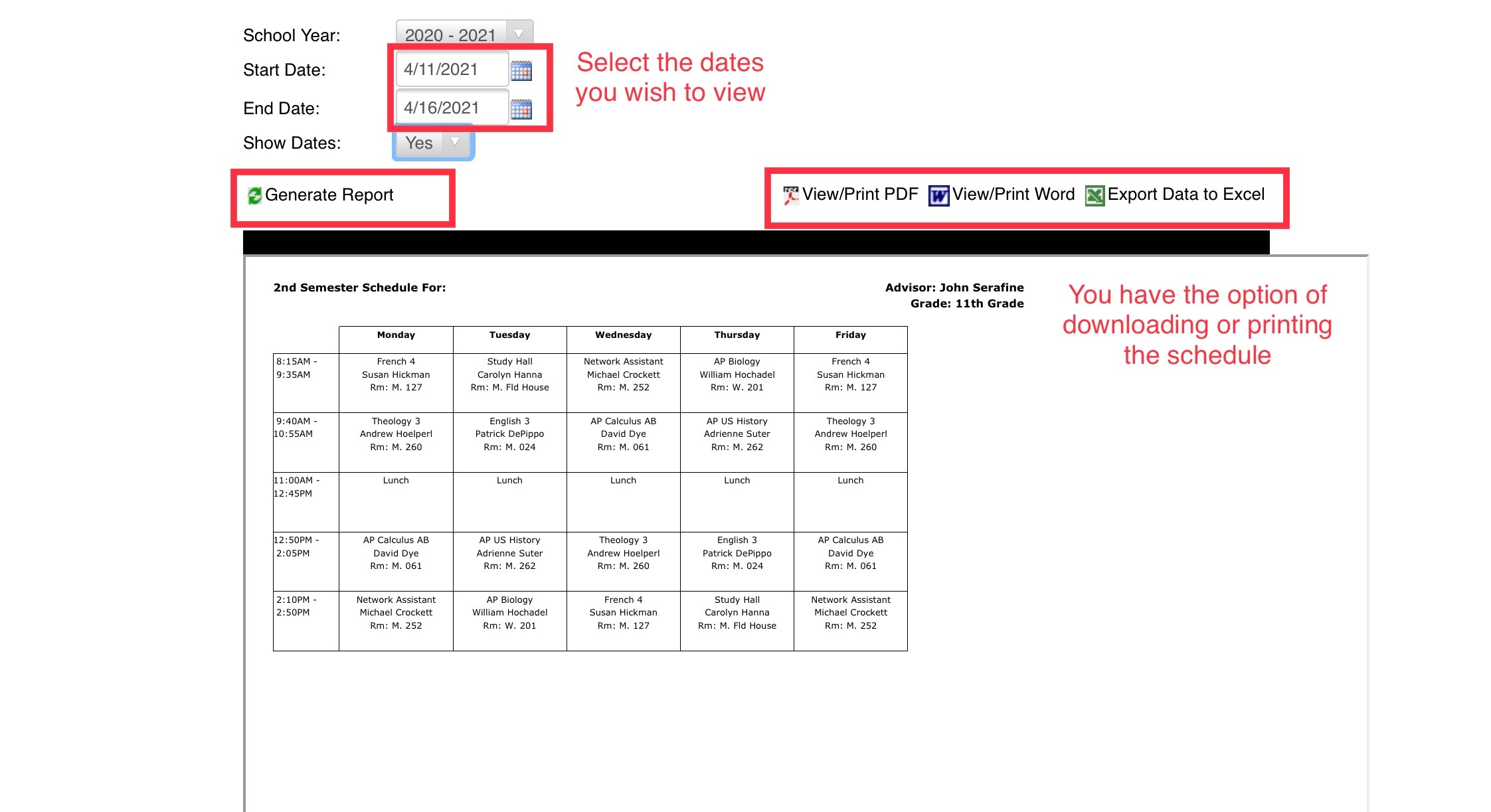
Note: The sample time order may not represent the time order for the current academic year.
¶ Parent Account
Log in to your parent account at https://mcquaid.myschoolapp.com/app/#login
Toggle to your son and select the Progress Tab to view courses, report cards and honor roll:
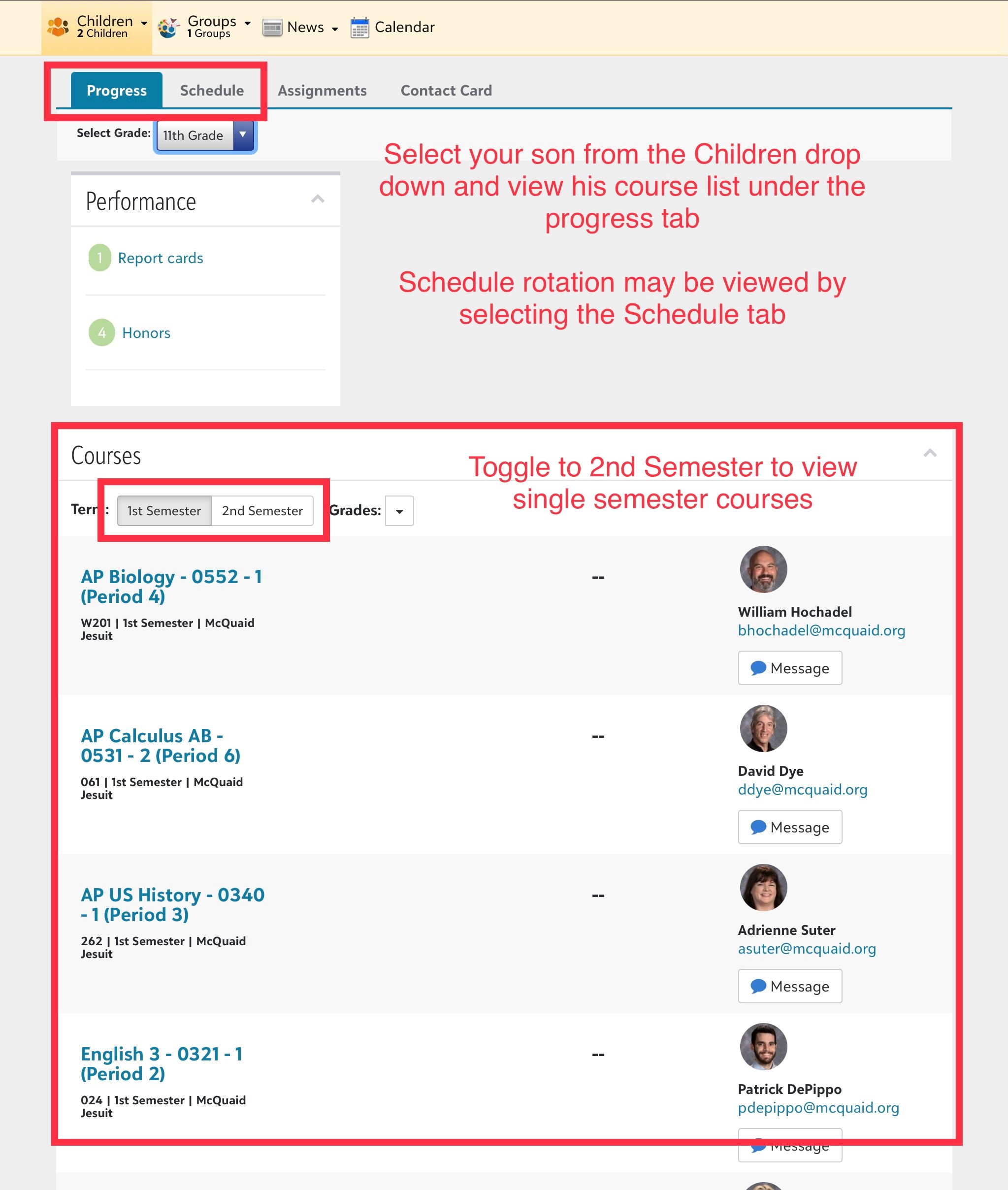
Select the Schedule Tab to view the schedule rotation by Day, Month or Week:
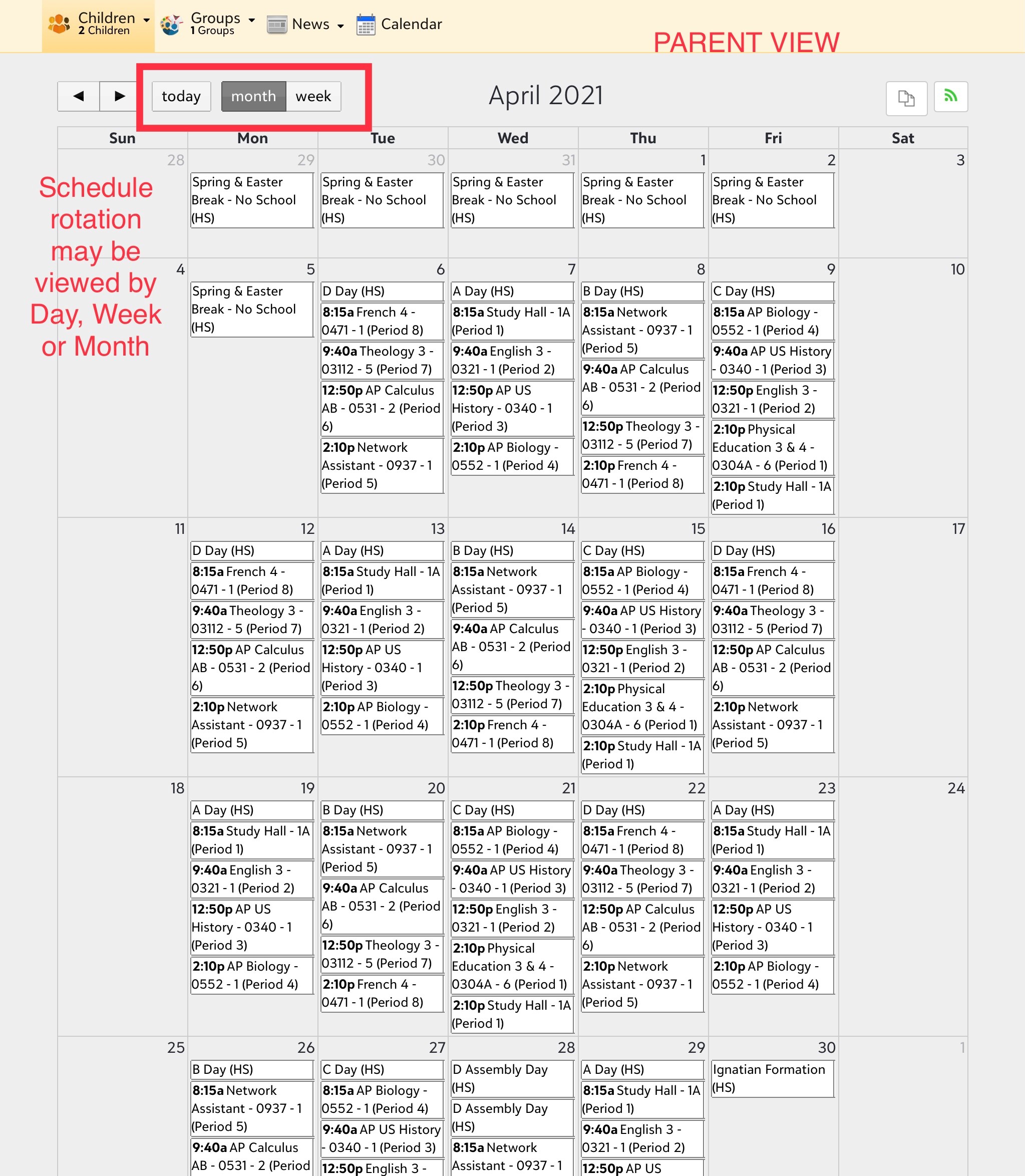
Note: The sample time order may not represent the time order for the current academic year.
Select the Schedule Tab. Your son’s schedule for the week will be available. Select View Full Schedule to open the month view: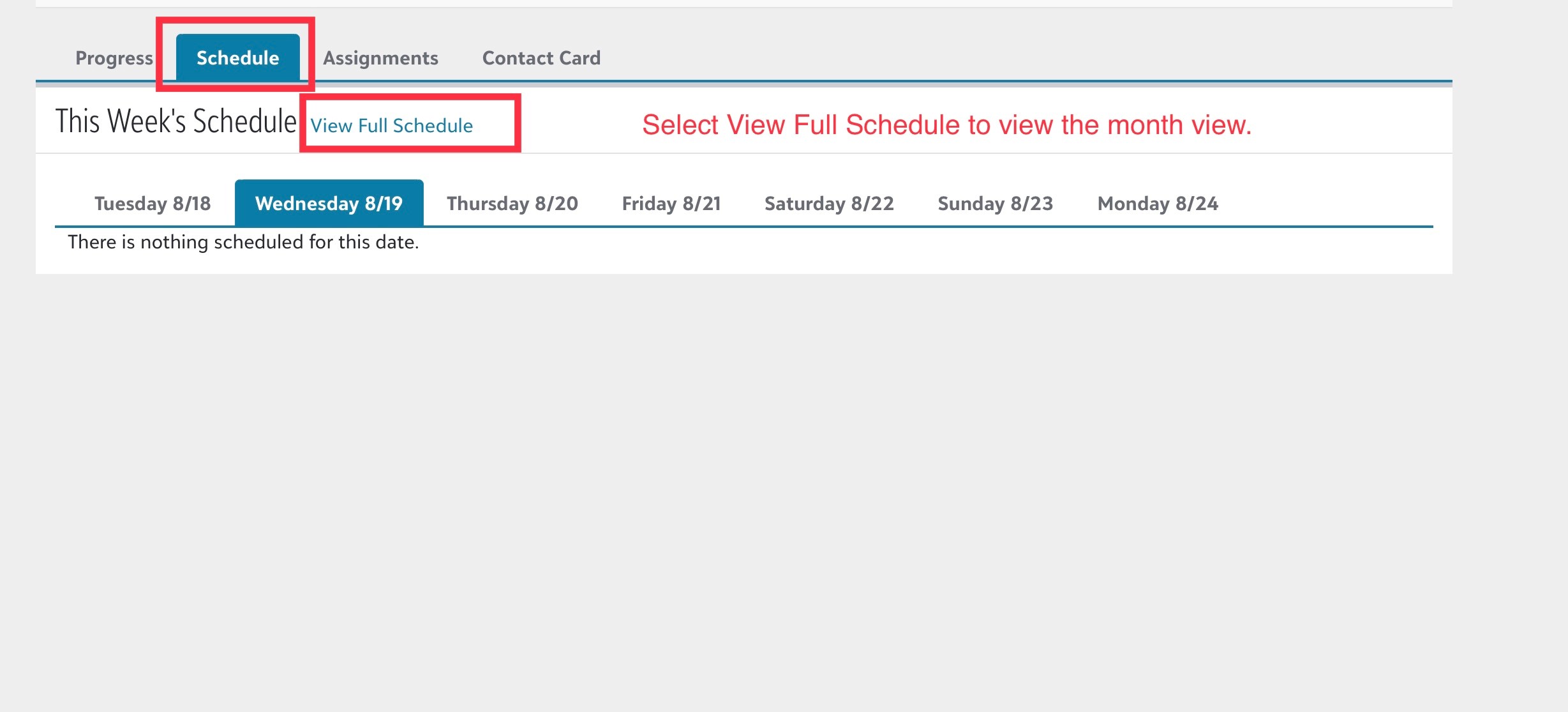
If you wish to view the schedule as a grid, select the Schedule Reports button: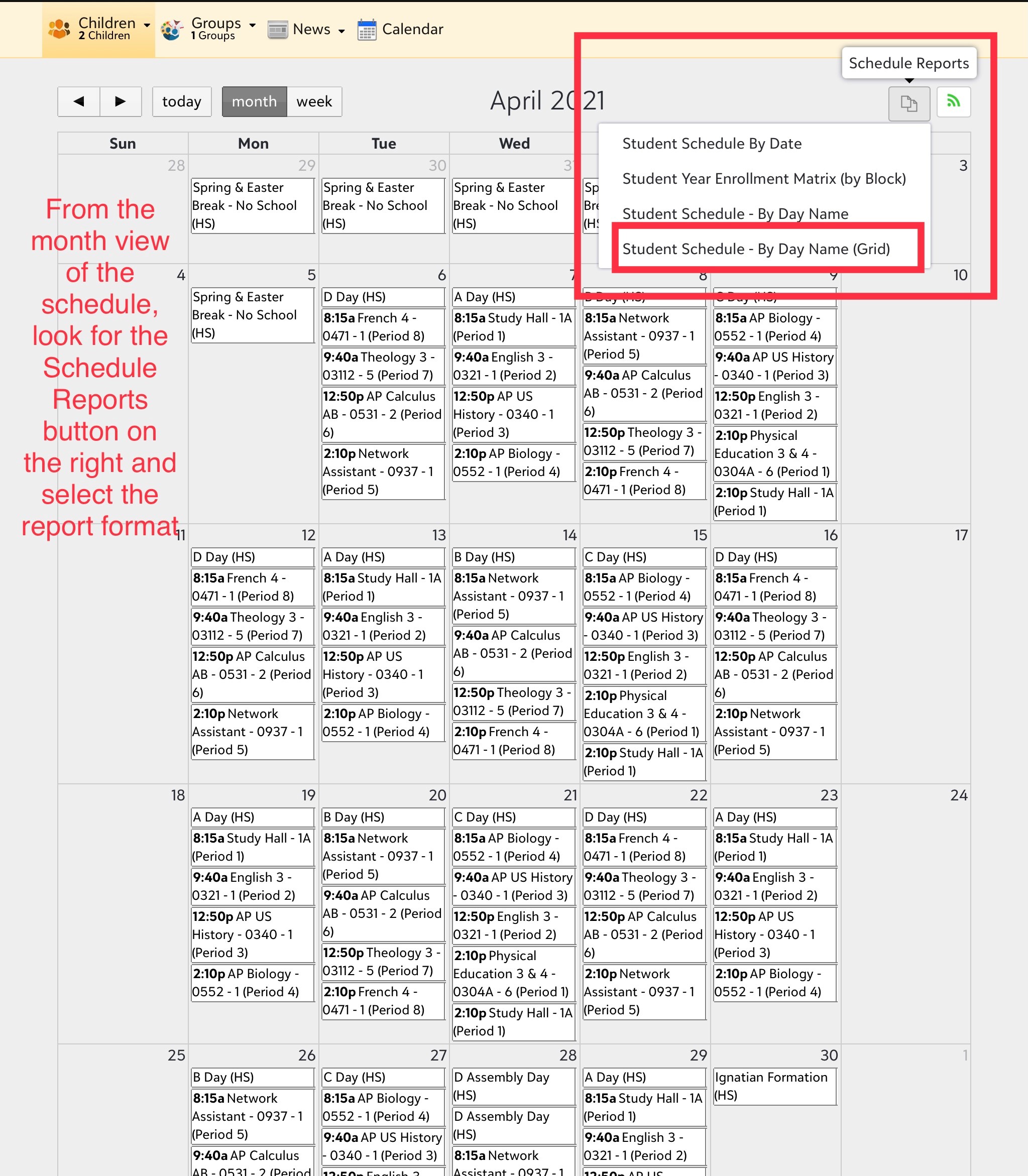
Select the dates and click Generate to view the report. Click View/Print PDF to download or print the schedule. The schedule will open in another window: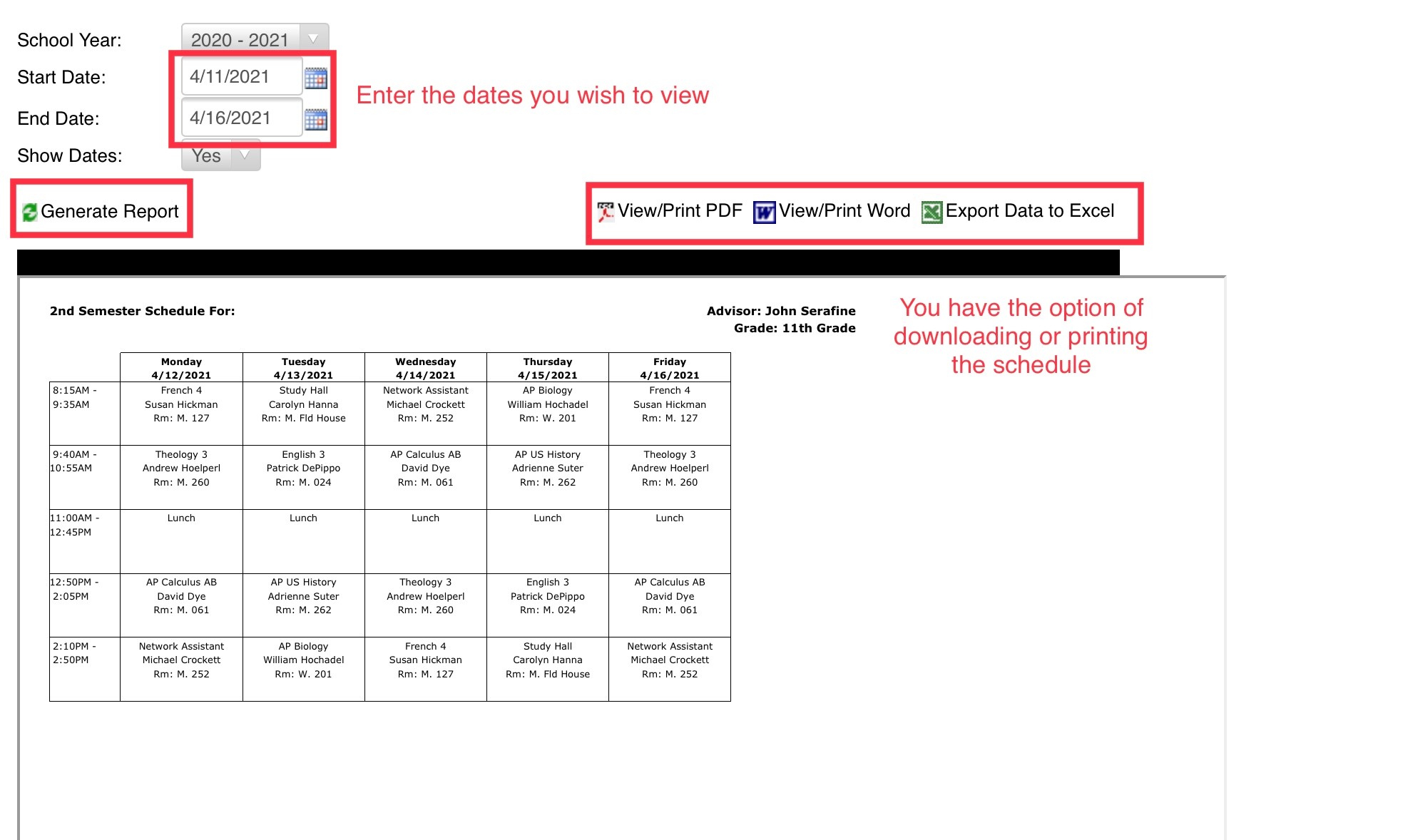
Note: The sample time order may not represent the time order for the current academic year.