¶ Apple Store Purchases (iBooks, iTunes, etc.)
Notes:
Purchases through the Apple Store, such as a book through iBooks, belong to the Apple ID they were purchased with. You cannot transfer ownership of this digital media.
It is important that a student's school Apple ID be the primary Apple ID on their school issued iPad, however we realize that students may want to personally own their digital media so that they can use it beyond their time at McQuaid.
This article aims to help guide students and faculty through the process of using a personal Apple ID with Apple Store apps, such as iBooks.
-
Please ensure that the primary Apple ID is your school issued ID.
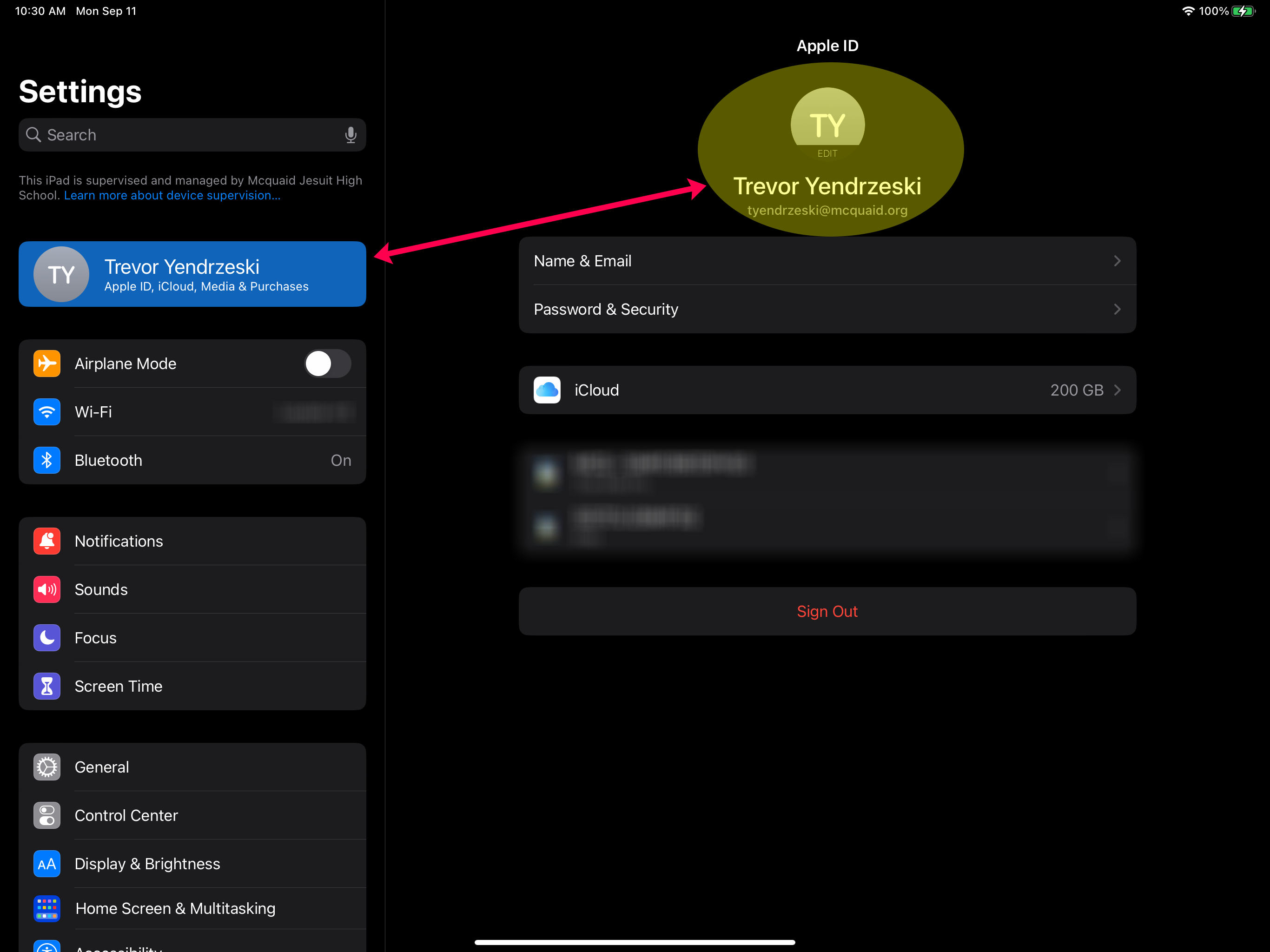
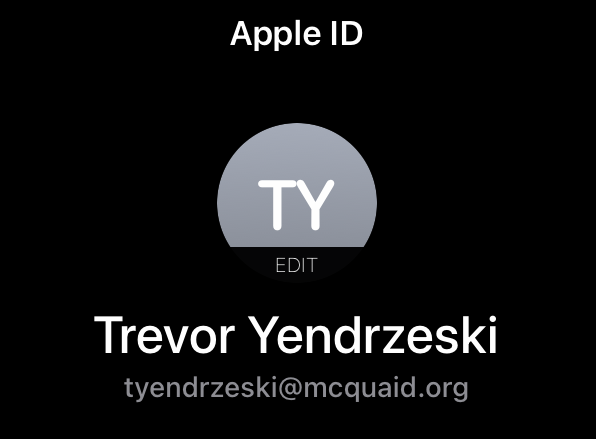
a. You can confirm this by opening the [Settings] app , scrolling to the very top and checking the email address below your name.
b. Faculty and Staff emails should end in @mcquaid.org
c. Student emails should end in either @student.mcquaid.org or @mcqstudent.org
-
Now we can open an Apple Store app. In this example, we will open the Books (iBooks) app.
a. In the top right, tap on the person icon
b. Please note that your Store Apple ID may be the same as your primary Apple ID at this point. We will now select sign out at the bottom of the list.
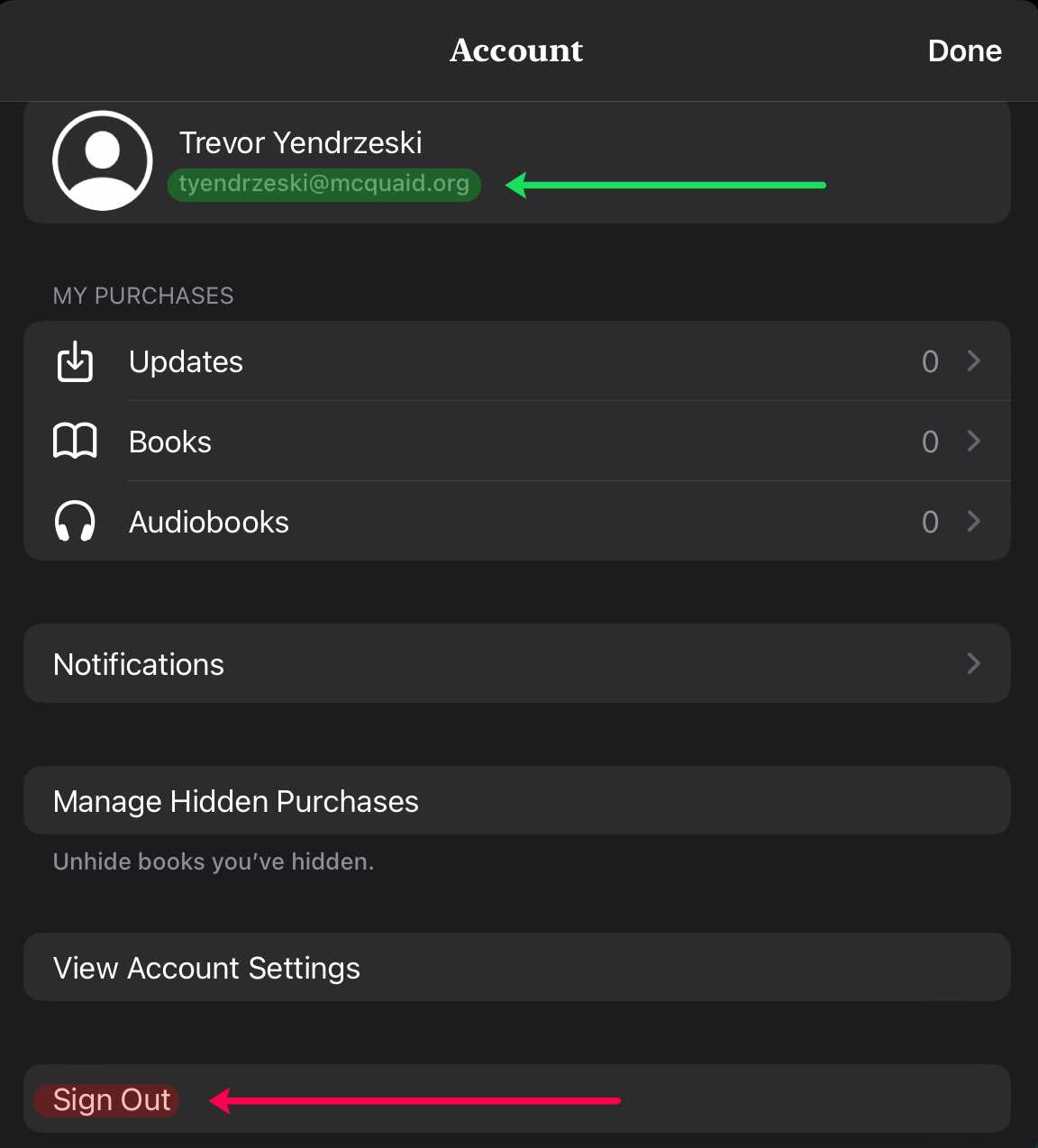
c. After signing out, the app will likely prompt you to sign in, if not please tap on the person icon again and a dialog box with should appear in the center of the screen.
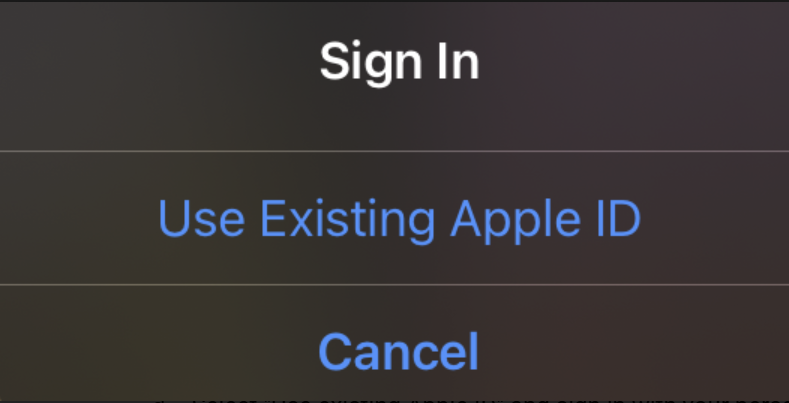
d. Select "Use existing Apple ID" and sign in with your personal Apple ID. Since Apple Store purchases cannot be transferred to other Apple IDs, we strongly recommend using an account that you or a parent/guardian is the owner of.
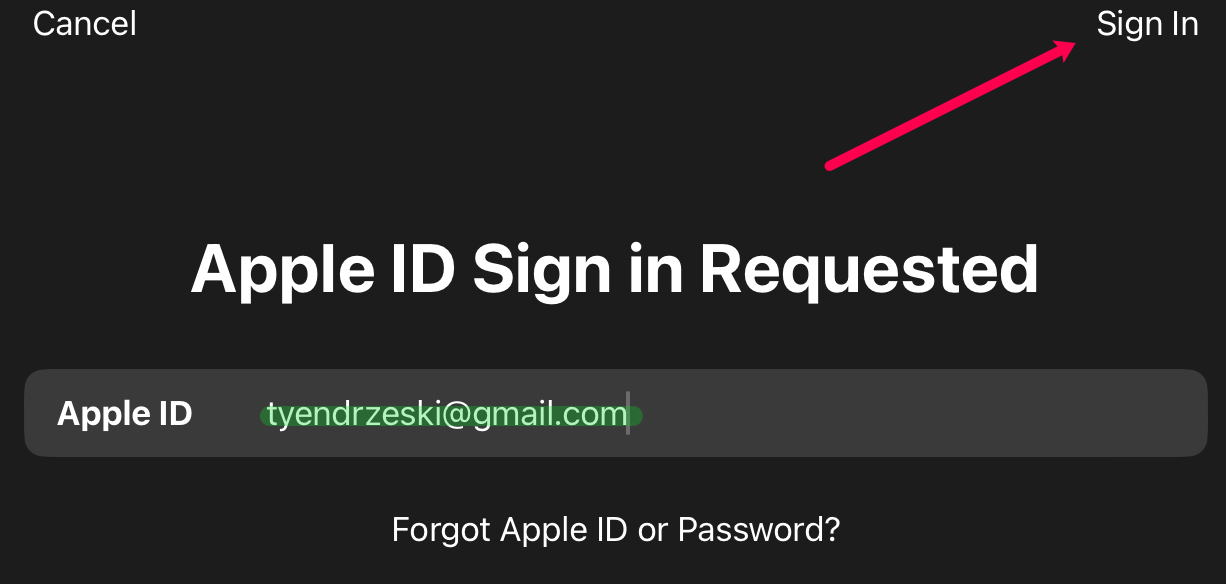
e. You should now be able to purchase and download content with your personal Apple ID. Please note that the primary Apple ID on the device should still be your McQuaid issued Apple ID, so any iCloud data such as photos or notes will be backed up with your McQuaid Apple ID.